PDF Scanner app - TapScanner
Tap AIBusiness
4.514.56K Reviews
- Version
- 3.1.16
- Installs
- 100.00M
- Age Rating
- Everyone
Screenshots
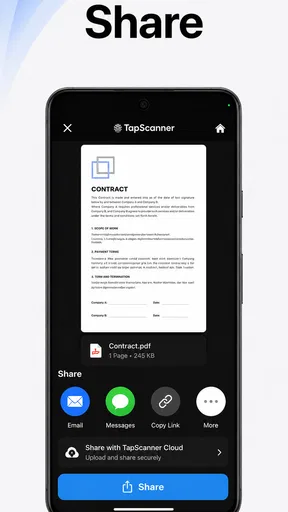
Our Review of PDF Scanner app - TapScanner
 Analysis by Appyee
Have you ever found yourself in a situation where you needed to quickly scan a document but didn’t have access to a scanner? Enter the world of PDF Scanner app - TapScanner. This nifty little app is like having a pocket-sized scanner ready to go wherever you are. Let me walk you through my experience with it.
Where TapScanner fits in a busy day
A useful way to judge a phone scanner is to ask whether it makes the next step easier, not just whether it takes a decent picture. I find TapScanner most valuable when a paper document needs to become a shareable file right away: a signed form for an appointment, a receipt to send to an office, or a few pages of notes that I want to keep with a project. It saves the trip to a printer or office scanner, and the resulting PDF is easier to send and store than a collection of camera photos.
For example, imagine receiving a paper invoice while away from your desk. I would capture it, check that the whole page is inside the crop, adjust the image if the print looks faint, and save it with a name that makes sense later. The important part is that scanning is only the first step. A useful routine also includes checking the result, filing it where I can find it, and sharing the right version. That small review before sending is worth the few seconds it takes, particularly for a document someone else will rely on.
Who benefits most, and who may prefer another route
TapScanner is a good match for students handling handouts, freelancers sending invoices, and anyone who occasionally needs to turn paper into a readable file without owning a dedicated scanner. It is also handy for people who want to keep receipts and short records together rather than leaving them scattered among phone photos. The app’s business category makes sense for these practical document tasks, although its usefulness is not limited to people at work.
I would not make it my first choice for every scanning job. If I had a large stack of pages to process every day, a physical document scanner with a feeder would be faster and less tiring. If I only needed to photograph a single page once, the camera app might be enough. TapScanner sits between those options: it is more purpose-built than a plain photo, but it still depends on careful phone positioning and a little checking from the user.
The app is free to download, while in-app purchases range from $1.49 to $99.99 per item. That makes it sensible to try the basic workflow before paying for anything. I would first work out how often I scan, whether the free tools cover my routine, and whether any paid option solves a specific problem I actually have. Someone who only scans occasionally may have no reason to upgrade, while a frequent user should weigh the cost against the time saved.
Getting Started with TapScanner
First things first, downloading the TapScanner app was a breeze. It’s available on both Android and iOS, so no one’s left out in the cold. After a quick installation, I was greeted by a clean and intuitive interface. No clutter, just straight to business, which I appreciate. It’s designed to get you scanning right away with minimal fuss.
Tap AI develops the app, which is rated for Everyone and has a 4.6 average from around 2.8 million ratings. It has passed the 100 million install mark, so it is clearly a familiar choice for many phone users, though popularity alone does not guarantee that every scan will suit every purpose. It was released on October 13, 2017, and the current version is 3.0.94. I see that version information as useful context for an established app, not a promise that every workflow or screen will remain unchanged forever.
Scanning Made Simple
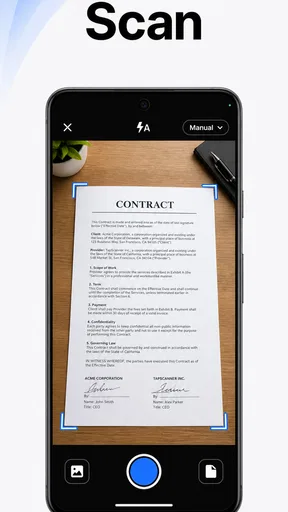
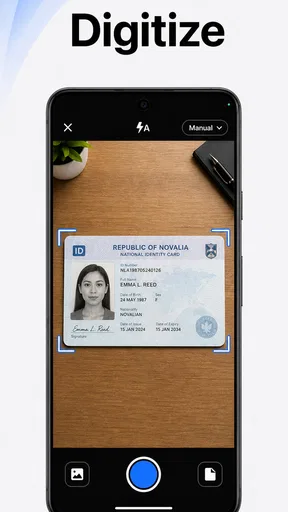
Now, the main event: scanning. Using my phone’s camera, I could easily capture any document. The app automatically detects edges, which is super handy, and applies perspective correction. You know how sometimes a document can look skewed when you take a picture? Not with this app. It straightens everything out nicely. You can even adjust the brightness and contrast to make sure the text is crystal clear.
The automatic correction helps most when the page is on a flat, contrasting surface and the camera is held reasonably steady. It is less of a substitute for good capture technique when the paper is curled, the lighting is uneven, or the background blends into the page. I get more reliable results by keeping the phone parallel to the document, avoiding shadows from my hands, and checking the corners before accepting the crop. Those habits matter especially for receipts with small print and forms where a clipped edge could remove important information.
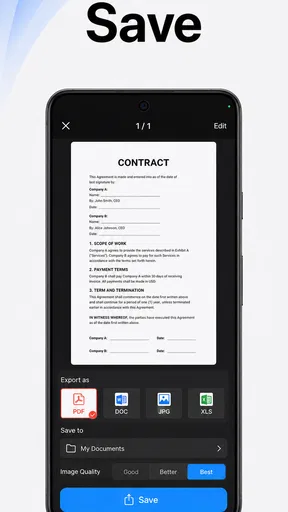
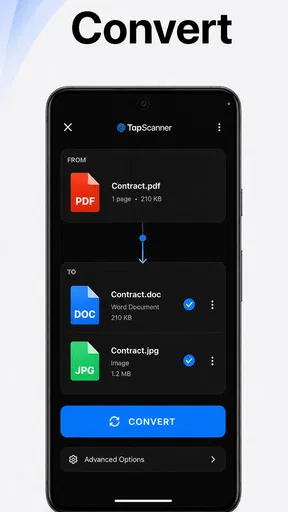
Once you’ve captured your document, you can save it as a PDF or JPEG. The quality of the PDF output is impressive, maintaining sharpness and clarity. I tested it with a few different documents - receipts, invoices, and even handwritten notes - and the results were consistently good.
Choosing between the two formats is a practical decision. I would use PDF when pages belong together or when I am sending a document that should read like a document; JPEG can make sense for a single image that needs to be dropped into another application. For a multi-page scan, I would review the page order and readability before sharing, rather than assuming that a clean first page means the entire file is ready. Handwriting also deserves a closer look: a page may appear clear as an image while still being difficult to read on a small screen.
Organizing and Sharing Your Scans
What good is a scanned document if you can’t find it later, right? TapScanner allows you to organize your scans into folders, making it easy to keep track of everything. Plus, if you’re like me and live in the cloud, you’ll love the integration with services like Google Drive, Dropbox, and OneDrive. Sharing documents is as simple as tapping a button, whether you’re emailing them or uploading them to the cloud.
For a filing system that stays useful, I would make folders around recurring tasks rather than creating a new one for every individual scan. A simple structure for things like work, study, and household paperwork can reduce the time spent searching later. I also recommend giving files descriptive names before sending them; a clear name helps the recipient and makes the document easier to locate in cloud storage. When a scan contains sensitive details, I would double-check the destination and recipient rather than relying on a quick share tap.
Cloud sharing is convenient, but it is not automatically the right choice for every document. I would use it when I need access across devices or want to pass a file to someone else. For paperwork that should remain private, I would think carefully about where I save it and who can access the chosen account. The app’s sharing tools streamline delivery, but deciding where a document belongs is still part of managing it responsibly.
If you’re concerned about security, the app has got you covered. You can add a watermark to your documents and even secure the app with a passcode.
A watermark can be useful when I need to identify a copy or mark a document for a particular purpose, but I would avoid placing one where it obscures a signature, amount, or other important detail. A passcode adds a helpful barrier when someone else can pick up my phone; it should be treated as one part of sensible device security, not a reason to share sensitive files casually. Before sending a protected or marked document, I would open the final file and confirm it remains readable for the person receiving it.
OCR Feature: A Handy Bonus
One feature that really stood out to me was the OCR (Optical Character Recognition) capability. This allows you to extract text from your scanned documents. I tested it on a printed page and was pleasantly surprised by how accurately it captured the text. This is a game-changer if you need to quickly copy text from a physical document.
OCR is most useful when the original is printed clearly and the scan is straight, well lit, and in focus. I would treat extracted text as a starting point, not a verified transcript: names, dates, totals, and unusual formatting deserve a manual check before I reuse them. A practical workflow is to scan the page, extract the text, then compare any important line against the image. That can save retyping while avoiding the risk of carrying a recognition mistake into an email or record.
It is also worth separating two jobs that people often bundle together. A scan preserves the page’s appearance; OCR makes some of its text reusable. If I need an exact visual record, I keep the PDF or image as the reference. If I need to search or copy printed wording, OCR can help, but it does not replace reviewing the source. For handwritten notes or cramped print, I would expect to do more correction by hand.
A Few Considerations
While TapScanner is mostly a win in my book, it's worth mentioning that some advanced features require a subscription. This is pretty common with apps these days, so it didn’t catch me off guard. The free version is certainly robust enough for everyday use, but if you find yourself needing more, upgrading might be worthwhile.
For me, the key is to avoid paying simply because an upgrade prompt appears during a task. I would first identify the feature I need, then consider how often it would save time and whether I can complete the same job with the tools already available. The range of in-app purchase prices is broad, so checking the specific option and its terms before confirming is especially important. A casual user and someone handling documents as part of daily work may reach different conclusions.
The ads in the free version can be a tad intrusive, but hey, that’s the trade-off for a free app, right?
That friction matters most when I am trying to scan something quickly or repeat the same action several times. If ads interrupt a one-off task, I can usually work around them; if they make frequent scanning feel cumbersome, it may be worth comparing the paid route with a dedicated scanner or another tool already included on the phone. The decision depends on the balance between convenience, cost, and how often I actually use the app.
What I would keep an eye on
With an app that has been around since 2017 and is now at version 3.0.94, I would judge it by the details that affect repeated use: whether capture and correction remain straightforward, whether I can keep files organized, and whether sharing still fits the services I use. The version number reflects the current release, but it does not by itself tell me what has changed between releases. I would avoid assuming a particular feature is new or recently improved unless the app itself explains that change.
For an existing user, the practical test is simple: after an update, scan a low-stakes page first, check that the output looks right, and make sure the file reaches the intended folder or recipient. That is a sensible habit with any document tool, especially when the scan will be used for a deadline or record. New users can take the same approach before building the app into an important routine.
Final Thoughts
All in all, TapScanner is a solid choice for anyone needing a reliable mobile scanning solution. It's user-friendly, efficient, and packed with features that make managing documents on the go incredibly convenient. Whether you’re a student, professional, or just someone who likes staying organized, this app is definitely worth checking out. So, next time you need to scan something, skip the bulky office equipment and just reach for your phone. Trust me, you won’t be disappointed.
My recommendation comes with one clear qualification: use it as a convenient way to capture and manage everyday paperwork, and take a moment to inspect anything important before relying on it. If you regularly process many pages, need a hands-off workflow, or want to avoid ads and paid-feature prompts, a different setup may serve you better. For occasional forms, receipts, notes, and invoices, the combination of camera capture, file organization, sharing, and OCR makes this a practical tool to keep on hand.
Verdict
Strengths of PDF Scanner app - TapScanner
- User-friendly interface, easy navigation.
- Supports various file formats for export.
- High-quality scanning with auto-crop feature.
- Integrates with cloud services for storage.
- OCR feature for text extraction works well.
Limitations of PDF Scanner app - TapScanner
- Contains ads in the free version.
- Limited features without premium upgrade.
- Occasional glitches during batch processing.
- Requires internet for cloud sync.
- OCR accuracy can vary with poor quality scans.
Other Releases by Tap AI
View All
PhotoBoost - AI Photo Enhancer
Photography4.6

Walli - Stunning 4K Wallpapers
Personalization4.5

ViewCaller: Caller ID & Block
Communication4.3
Similar Picks in This Category
View All
LinkedIn: Community & Network
LinkedIn3.8

Zoom Workplace
zoom.com4.1

Microsoft Teams
Microsoft Corporation4.6

Meta Business Suite
Meta Platforms, Inc.4.6

Webex Meetings
Cisco Systems, Inc.4.5

TeamViewer Remote Control
TeamViewer4.4
You May Also Like
View All
Frequently Asked Questions
What features does TapScanner offer for scanning documents?
TapScanner provides a comprehensive suite of features for scanning documents. It allows users to scan documents with their phone's camera, offering auto-cropping and optimization for clarity. The app supports various file formats including PDF and JPEG, and offers OCR (Optical Character Recognition) to extract text from images.
Is TapScanner free to use, or does it require a subscription?
TapScanner offers a free version with basic features, but for a more enhanced experience, users can opt for a subscription. The premium version provides additional features such as unlimited scans, cloud storage integration, and an ad-free experience, ensuring more efficient document management.
How does TapScanner ensure the security of scanned documents?
TapScanner prioritizes user privacy and document security by using encryption protocols to protect data. Users can store their scanned documents locally or choose to sync them to secure cloud services offered by the app, ensuring that sensitive information remains protected at all times.
Can TapScanner integrate with cloud services for storing documents?
Yes, TapScanner seamlessly integrates with various cloud services like Google Drive, Dropbox, and OneDrive. This feature allows users to save their scanned documents directly to the cloud, enabling easy access and sharing across different devices, which is crucial for users who work on the go.
What are the system requirements for installing TapScanner on Android and iOS devices?
TapScanner is compatible with both Android and iOS devices. For Android, it requires version 5.0 or later, and for iOS, version 11.0 or later is needed. Users should ensure their devices meet these specifications for optimal performance and access to all features offered by the app.
